How to Use Luminar AI for Stunning Real Estate Photo Editing
How to Use Luminar AI for Stunning Real Estate Photo Editing
If you’re a beginner or a busy photo editor looking for faster and smarter tools, Luminar AI might be your new best friend. This AI-powered photo editor is perfect for enhancing property images quickly without sacrificing quality. In this guide, you’ll learn how to use Luminar AI for real estate photo editing and how it can simplify your workflow while producing impressive results.
What is Luminar AI?
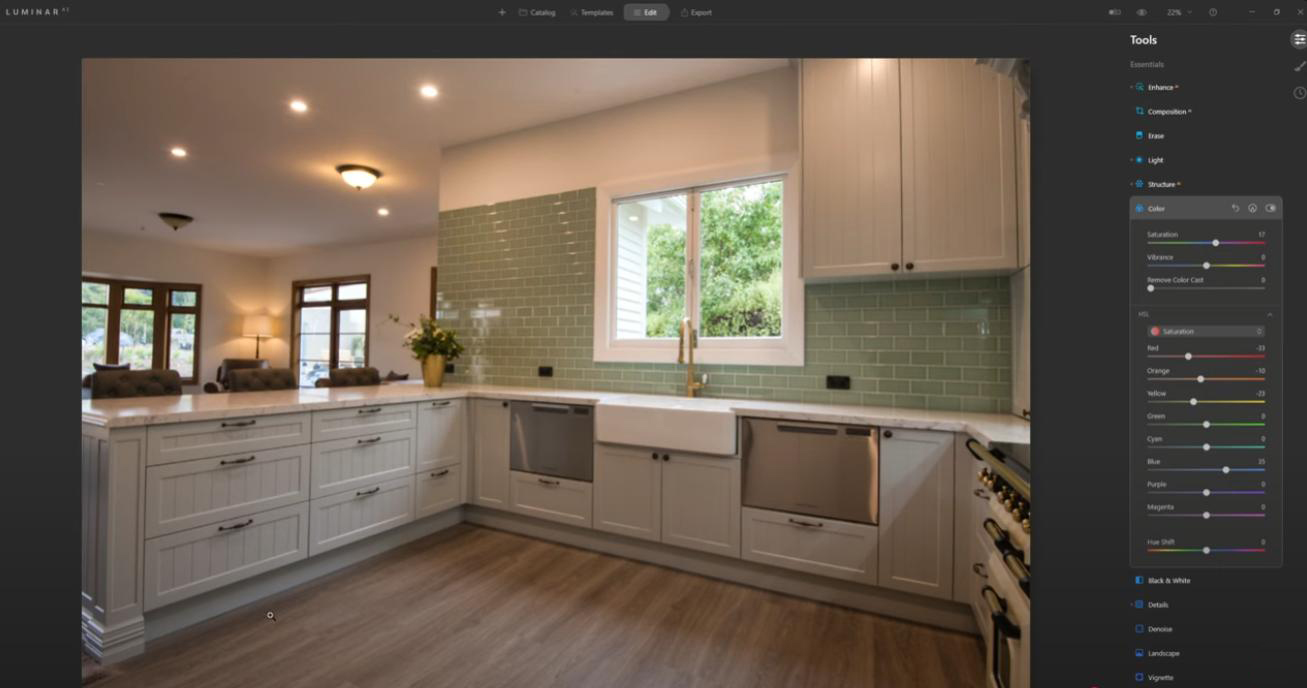
Luminar AI is a photo editing software developed by Skylum. Unlike traditional editors like Photoshop, Luminar focuses on artificial intelligence to automate common editing tasks — saving you time while still giving you control. It’s particularly useful for real estate photographers and editors who work with large batches of interior and exterior shots.
Why Use Luminar AI for Real Estate Photo Editing?
- One-click enhancements: Perfect for batch editing property photos
- Smart structure & detail tools: Bring out room textures and clarity
- Sky replacement: Instantly transform dull skies in exterior shots
- Portrait tools: Great for agent photos or lifestyle shots in staged homes
- Speed: You can edit a full gallery of listing images in minutes
Getting Started with Luminar AI
Here’s a step-by-step workflow to edit real estate images efficiently:
1. Import Your Images
Open Luminar AI and drag your photo folder into the interface. You’ll see a clean layout with quick access to templates, tools, and previews.
2. Use AI Templates for Fast Results
Click the Templates tab, and Luminar will automatically suggest styles based on the photo type — architecture, landscapes, interiors, etc. Choose a template and preview the results instantly.
3. Fine-Tune with Editing Tools
Once you apply a template, switch to the Edit tab for manual adjustments. Focus on:
- Light: Adjust exposure, highlights, and shadows
- Structure AI: Boosts room details without halos or noise
- Color: Enhance vibrance or remove color casts
- Sky AI: Replace boring skies with dramatic but realistic skies
4. Export Optimized Images
When you’re done, export your images in JPEG or WebP formats. You can resize them and control quality during export — perfect for uploading to Zillow, Airbnb, or your own real estate website.
Tips for Using Luminar AI in Real Estate Projects
- Use batch processing to edit multiple rooms with the same settings
- Create your own templates to match your brand’s photo style
- Don’t overdo effects — keep edits realistic and clean
- Use Sky AI only on exterior shots and avoid overly dramatic skies
Comparing Luminar AI vs Photoshop for Real Estate
While Photoshop gives you full manual control, Luminar AI excels in speed and automation. If you’re working on hundreds of images per week, Luminar helps you stay productive without needing advanced Photoshop skills. Many editors even use both: Luminar for base editing, and Photoshop for finishing touches or advanced retouching.
Conclusion
Learning how to use Luminar AI for real estate photo editing can transform your workflow — especially if you’re looking to save time while delivering professional results. It’s beginner-friendly, affordable, and designed with photographers in mind. Whether you’re a real estate agent, a freelance editor, or a passionate beginner, Luminar AI is worth adding to your toolkit in 2025 and beyond.

0 Comments